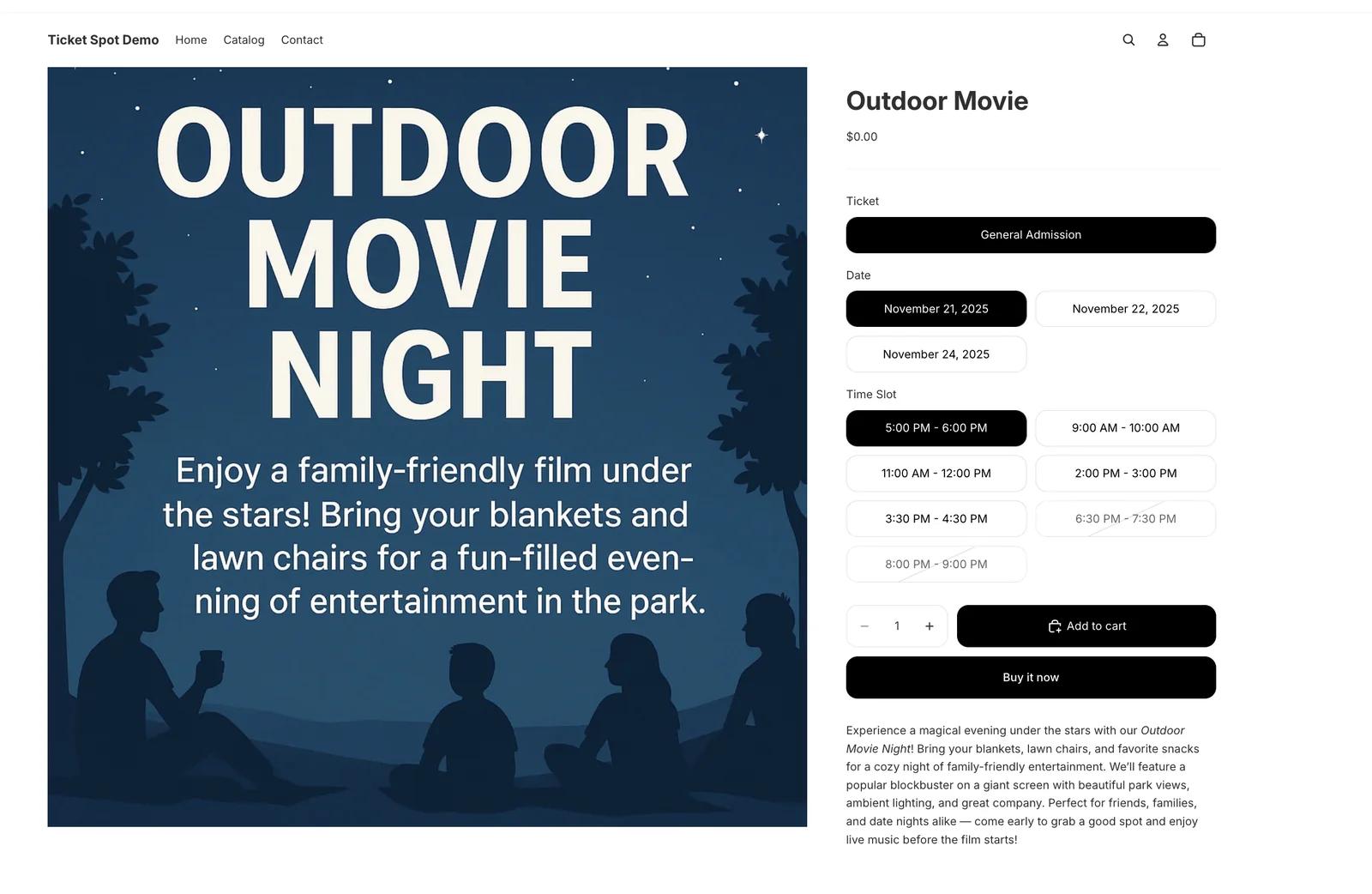
Once you have decided to sell event tickets on Shopify, one decision is left, and it is the one merchants get stuck on: what does the buyer actually see on the product page?
Shopify gives you a variant dropdown. Ticket Spot can replace it with a Ticket Selector. This post is about when the dropdown is enough and when it is not — because for a large share of events, it is enough, and swapping it out gains you nothing.
Wine shops sell tasting tickets beside their bottles. Fitness studios sell class passes alongside apparel. Venues offer merch and admission in one checkout. Some of those need a calendar. Most do not.
What Shopify already does well, and where events strain it
Shopify already owns the parts of a ticket sale that are just commerce: the cart, the checkout, payments, discount codes, taxes, customer accounts, order history and store analytics. A ticket sale is a Shopify order, so all of that comes for free and none of it changes.
What Shopify has no concept of is the event around the sale — that a product is happening at 10:30 on Saturday, that only forty people fit, that the buyer needs something scannable at the door, and that somebody has to check them in. That is the layer Ticket Spot adds.
Capacity is the interesting case, because it looks like it is missing and is not. Shopify inventory per variant is per-slot capacity once each slot has its own variant, which is exactly what the app creates. What is missing is the interface: a dropdown will not show you a calendar, and it will not tell a buyer that four places are left.
So the split is:
| Shopify | Ticket Spot |
|---|---|
| Cart, checkout, payments | Ticket types, dates, slots |
| Discounts, taxes | The buying interface for them |
| Customer accounts, orders | PDF and Wallet tickets |
| Store analytics | Attendee management, reminders |
| Inventory | Door check-in and scanning |
The two product pages you can ship
Both start the same way. You set the event up in Ticket Spot inside Shopify admin, and the app creates a Shopify product plus a variant for every combination of date, time slot and ticket type that needs one. Both then sell through your own Shopify cart and checkout — payments, discounts, taxes, customers and order records all stay in Shopify. The only thing that differs is how the buyer picks what they are buying.
PATH 1 — Shopify's own variant selector (the default)
This is what a published event does with no theme changes at all. Your ticket types are variants and the buyer chooses one from the dropdown, exactly as they would choose a size.
How it works:
- You create the event in Ticket Spot; the app creates the Shopify product and its variants
- The buyer picks a variant from Shopify's standard dropdown
- Checkout runs in Shopify checkout
- The order syncs to Ticket Spot
- Ticket Spot issues the tickets, sends reminders and manages attendees
Best for: general admission, early bird, a VIP tier, a weekend pass — any event whose choices are a short list. Most events are this. If yours is, you are done; there is nothing to install on the theme.
PATH 2 — The Ticket Selector app block (optional)
The Ticket Selector takes the place of the variant dropdown for events a dropdown cannot express. It is optional and off by default, and adding or removing it later does not change the product or its variants.
- Calendar picker
- Time slots with their own capacity
- Availability indicators
- Quantity controls
- Reserved seat maps
- Per-attendee registration questions
Best for: timed entry and arrival windows, reserved seating, long schedules, and events that need to ask each attendee something.
What the Ticket Selector looks like
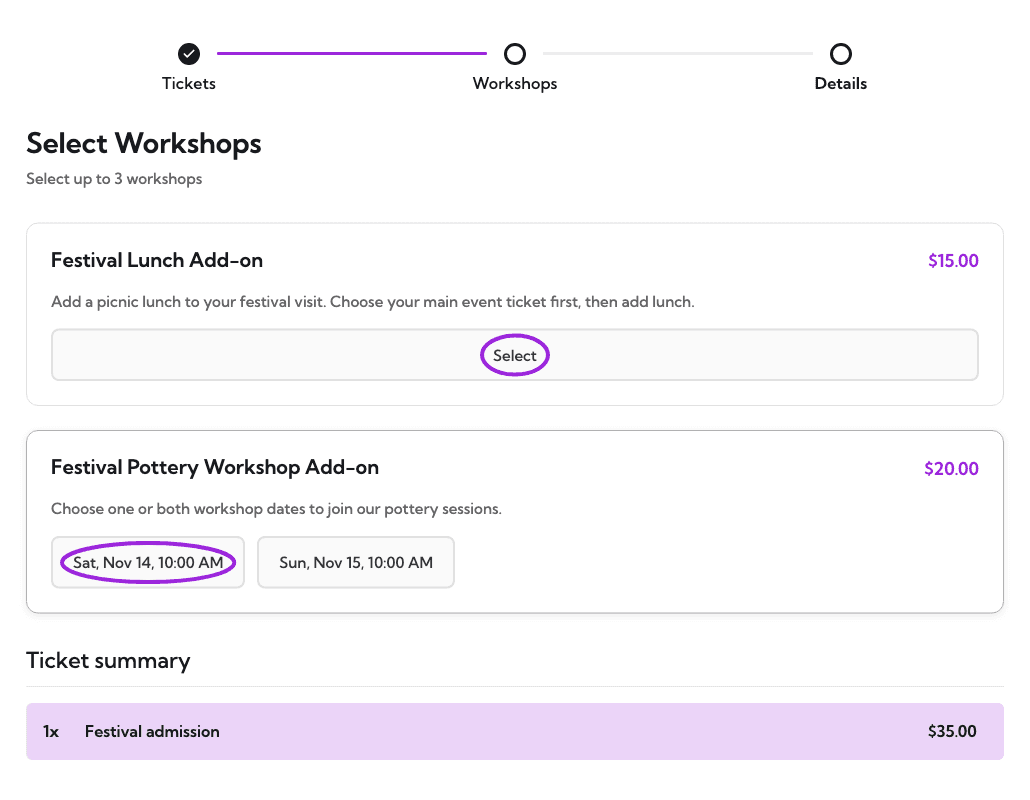
Product demonstration from our Shopify demo store, not a customer case study. Here the buyer adds an optional workshop to the main admission before continuing to Shopify checkout. Available options depend on the event configuration and plan.
The Thank-You Page app block
A separate block, usable with either path, that puts a "Download Tickets" button on Shopify's thank-you page. It is available from the Professional plan — see pricing for the full gate list.
What about the embedded widget?
Ticket Spot also has a general embedded checkout widget that runs its own checkout on your domain and connects to Stripe, PayPal or Square. It is a platform feature, not part of the Shopify app, and it does not create Shopify orders — the same way Square POS selling sits outside the integration. If your store's orders need to live in Shopify, use one of the two paths above.
Ticket Spot charges no per-ticket fee on any of these routes.
Side by side
A variant is a good way to express a kind of ticket. It is a poor way to express a time.
| Shopify variants | Ticket Selector | |
|---|---|---|
| Ticket types | Dropdown, works well | Grid |
| Dates and time slots | One variant per slot, so the dropdown grows long fast | Calendar and slot grid |
| Capacity per slot | Shopify inventory per variant | Shopify inventory per variant, shown as remaining |
| Remaining-count messaging | Not shown | Shown |
| Reserved seats | Not possible | Seat map |
| Per-attendee questions | Not possible | Supported |
| Theme changes needed | None | Add the app block |
Note what is not in the right-hand column: a different checkout, a different cart, or a different order record. Both paths are ordinary Shopify inventory the whole way through.
One real limit on both paths: a Shopify product cannot exceed 2,048 variants, so a schedule long enough to blow through that has to be split across products.
Setup
- Install Ticket Spot from the Shopify App Store
- Create (or map) your event product
- Optionally enable:
- Ticket Selector App Block on the product page (replaces the Shopify variant selector)
- Thank-You Page App Block (download tickets)
- Orders sync automatically, with no manual step
What the buyer gets after checkout
The same on either path, because the order is the same Shopify order:
- PDF ticket with a scannable QR code — one code per admission, not one per order
- Apple and Google Wallet passes
- Confirmation and reminder emails
All three are on the Professional plan and above; the free plan issues free tickets only. Your logo and colours on tickets, emails and pages start on Business, and removing Ticket Spot branding from emails entirely is a Business+ feature — pricing has the full matrix. What is on the ticket and how it is scanned is covered in QR code tickets for Shopify orders.
Test registration before publishing
For a class or event registration, decide whether you need information about the buyer, each attendee, or both. Test an order containing more than one ticket so you can see what information is collected for each person. Use the Shopify setup documentation for configuration, and check your plan's feature availability.
Complete one order in your own theme and confirm the selected date, ticket type and attendee information in Ticket Spot. Check the delivered ticket and scan it with the door team's device. This is especially useful for timed entry and reserved seating, where a successful payment alone does not prove the buyer selected the intended admission.
Tools for Merchants
- Shopify → Ticket Spot order sync
- Check-in app for iOS and Android, with QR scanning
- Event analytics
- Attendee lists and exports
- Email communication tools
- Klaviyo for email and SMS flows; Zapier from Business, Mailchimp from Business+
All while keeping your store operations inside Shopify.
Real Use Cases
- Wine shops — tasting tickets beside the bottles. Variants are enough.
- Fitness studios — class passes alongside apparel. Selector, for the schedule.
- Venues — merch and admission in one checkout. Selector, if seats are reserved.
- Art galleries — prints and exhibition tickets. Variants, unless entry is timed.
- Tours and experiences — bookings and gear. Selector, almost always.
Which one should you ship?
Start with variants. It is the default, it needs no theme change, and for a short list of ticket types it is the better buying experience — one dropdown the buyer already knows. Move to the Ticket Selector when your event has dates and times, reserved seats, or a question you need to ask each attendee. You can switch either way later without rebuilding the product.
For the full integration — installation, plan gates, and an explicit list of what it does not do — start at the Shopify integration hub. If you are still choosing an app, the five Shopify ticketing apps compared puts the costs side by side.