Event Check-In App for iOS and Android
Scan QR code tickets at the door on a phone or tablet, catch a code that has already been used, and find anyone who arrives without theirs — every scan checked against your live attendee list.
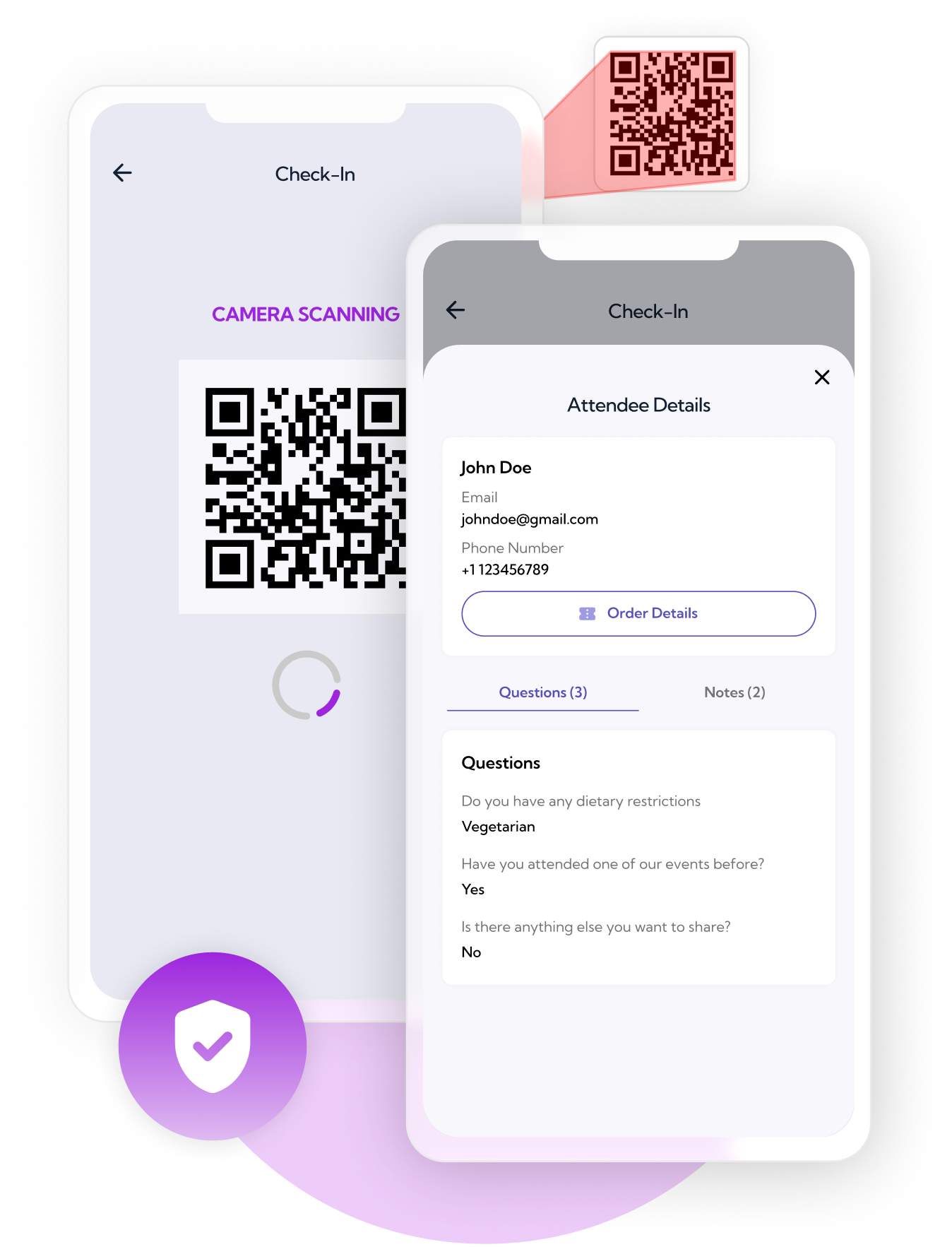
What is an event check-in app?
An event check-in app is what your staff hold at the door. It reads the QR code on an attendee's ticket, confirms the ticket is valid and has not already been used, and records that the person arrived. It replaces the printed guest list — and it is the one part of your ticketing that every attendee watches you operate.
Ticket Spot's check-in app runs on iPhone, iPad and Android. It is a free download and you sign in with your organizer account; the scanning itself is included from Professional up, with no per-device or per-scan charge. The tickets it reads are the ones you set up when you created the event, so there is nothing to import and no separate attendee list to keep in step.
What the app does at the door
- Scan a QR code with the phone or tablet camera, on iOS or Android
- Use a USB or Bluetooth barcode scanner instead of the camera at a busy gate
- See when a code has already been used, with a check-in history kept per attendee
- Find someone by last name or email when they cannot produce a code
- Add a walk-up attendee on the spot
- Accept the ticket however the attendee has it: PDF, Apple Wallet or Google Wallet
The app needs a connection at the door
A field, a basement conference room and a marquee all have the same problem, and it is the question organizers ask first. The answer is a straight no: Ticket Spot has no offline check-in mode. Every scan is checked against your live attendee list, so a device with no signal cannot admit anyone until the signal is back.
- Every scan is checked against your live attendee list, so each scanning device needs a working internet connection
- Test the signal at the doorway itself, not at the box office — a marquee, a basement room or a far gate can be fine on paper and dead where you actually stand
- Keep a phone hotspot or a dedicated router as backup if the venue Wi-Fi is shared with the audience
Treat connectivity at the gate the way you treat power: something to check on the walkthrough, not on the day. What you get in exchange is that no device is ever working from a stale copy — a ticket refunded seconds ago is already rejected, a ticket already scanned at another gate is already flagged, and two doors cannot drift apart.
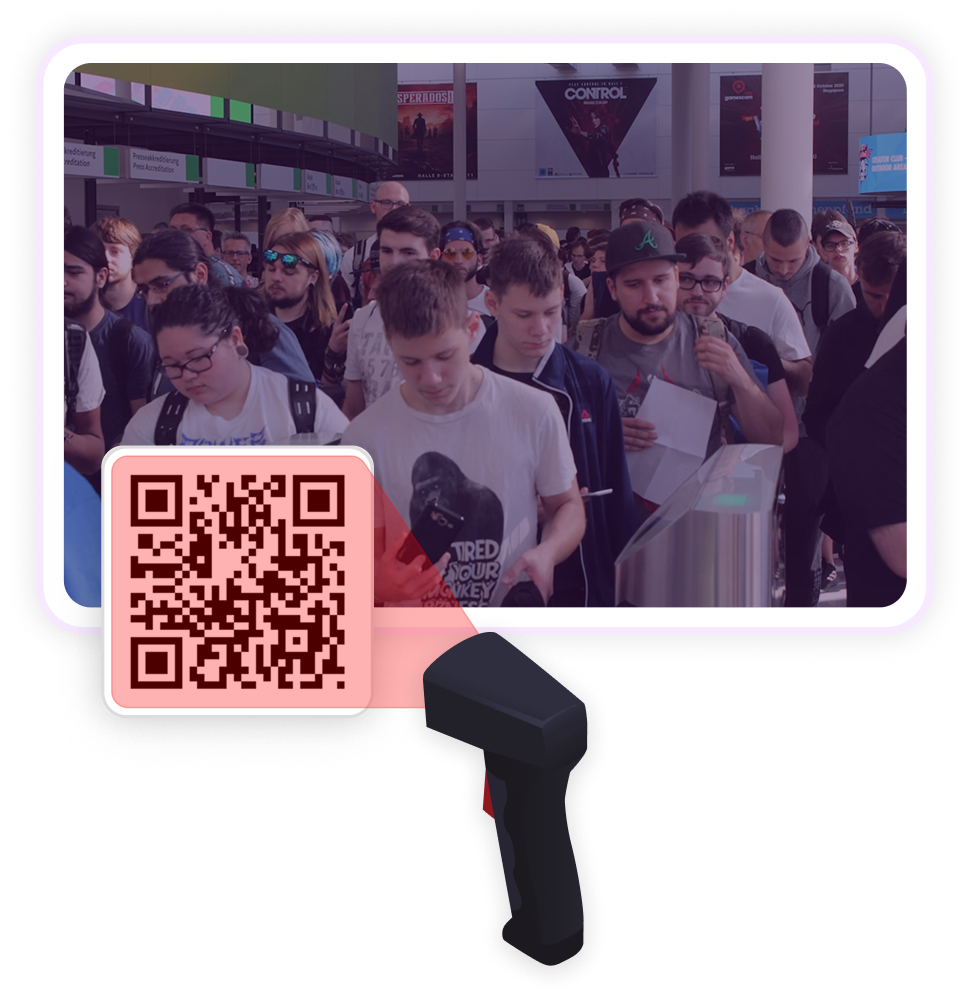
Barcode scanners for a busy gate
- Connect a USB or Bluetooth barcode scanner that sends keystrokes — most models work without a driver
- Aim and pull a trigger instead of framing a code on screen, which is what makes the difference on a long line
- Run scanners and phone cameras side by side on the same gate
- Every scan lands in the same check-in record, whichever device read it
Scanning tickets against checking off a printed list
| At the door | Printed guest list | Check-in app |
|---|---|---|
| Finding an attendee | Read down an alphabetical printout | Scan the code, or search a last name |
| A ticket used twice | Only caught if the same volunteer remembers the name | The second scan is flagged, with a check-in history per attendee |
| Two doors at once | Two lists that disagree by the end of the night | Every device reads the same live list, so a checked-in attendee shows as checked in at all of them |
| A refunded ticket | Still printed on the list | Rejected as soon as the refund goes through |
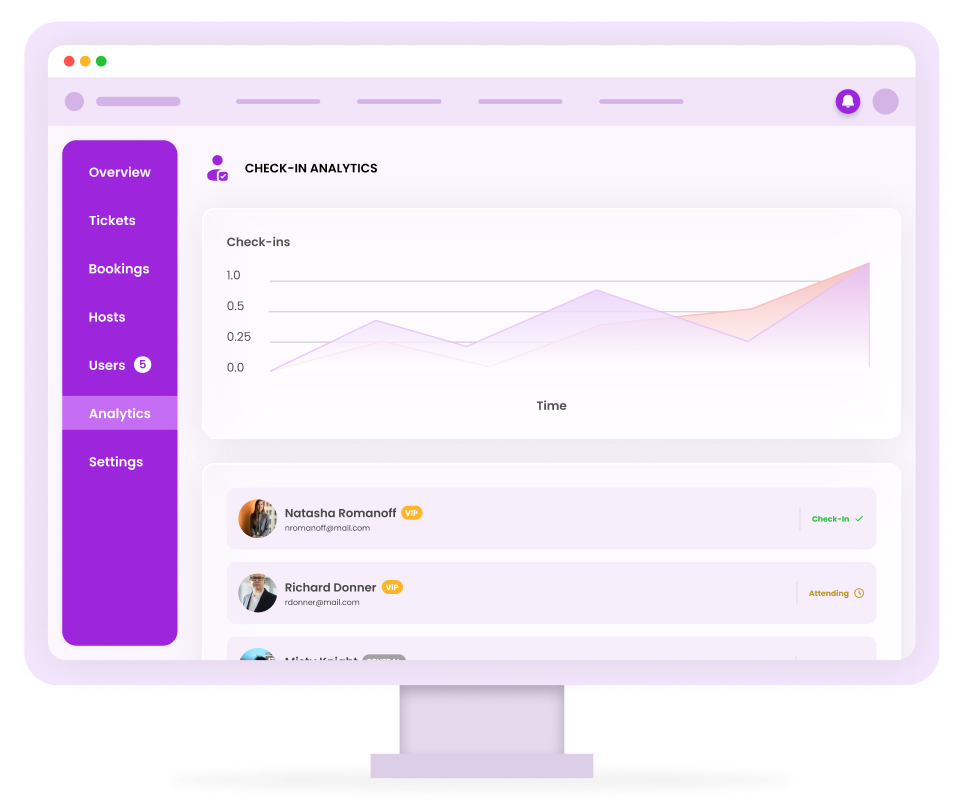
| What you know afterwards | A stack of annotated paper | Check-in analytics showing who arrived and when |
Letting attendees check themselves in
- Attendees scan their own code at a tablet instead of queueing for a staffed desk
- A thermal printer beside the kiosk can print the badge as they check in
- Our conference walkthrough measures a kiosk lane at 120-180 attendees an hour against roughly 60 for a staffed one
Kiosk mode is available from Business up. If you are planning a registration desk around it, the walkthrough of kiosk mode and badge printing for conference check-in covers the hardware, the lane maths and what goes wrong.
Who runs check-in this way
- Festivals and concerts — High arrival rates through a small number of gates, with every scanner reading one list.
- Conferences and trade shows — A long registration peak before a keynote, where self-service and badges do the work.
- Parks, tours and timed entry — Repeated arrivals across a day, each valid only inside its own window.
- Workshops and classes — Small, frequent sessions where attendance is the record that matters afterwards.
- Fundraisers and galas — Named guests and tables, where finding one person quickly matters more than raw speed.
How to set it up
Install the app
Download Ticket Spot Check-In on the iPhone, iPad or Android device you will use at the door, and sign in with your organizer account.
Pick the event
Choose the event on the device, and check the device has signal where you will actually be standing. Scans are validated against the live list, so the door needs a connection.
Scan, or look them up
Point the camera at the code, or use a connected barcode scanner. If someone has no code, search their last name or email and check them in by hand.
Read the numbers afterwards
Check-in analytics show who arrived and when, which is the part that tells you whether the door plan worked.
Which plans include check-in
Scanning arrives in two steps. The mobile scan app is included from Professional up, on as many devices and for as many scans as you need. Self check-in kiosk mode, check-in analytics, per-ticket check-in limits and the early check-in window all start on Business.
The app itself costs nothing to download from either store — what the plan buys is the scanning, not the software.
Frequently asked questions
An event check-in app is the tool your staff use at the door to admit people. It reads the QR code on each attendee's ticket, confirms that the ticket is valid and has not already been used, and records that the person arrived. It replaces a printed guest list, and it is the only part of the ticketing chain your attendees watch you operate.
iPhone, iPad and Android phones and tablets. You can scan with the device camera, or connect a USB or Bluetooth barcode scanner, which is faster than a camera at a busy gate.
No. The app checks every scan against your live attendee list, so each scanning device needs a working internet connection at the door. Plan for that the way you would plan for power: test the signal at the doorway itself rather than at the box office, and keep a phone hotspot or a dedicated router as backup if the venue Wi-Fi is shared with the audience. The upside of validating live is that there is no stale copy anywhere — a ticket refunded seconds ago is already rejected, and two gates can never disagree.
Yes. Run the app on as many devices as you have staff and gates. Every device reads the same live attendee list, so someone admitted at one door immediately shows as checked in at the others.
The second scan is flagged rather than quietly accepted. The app shows that the ticket has already been used and keeps a check-in history per attendee, which turns a duplicate into a conversation at the door instead of two people in one seat.
Search their last name or email address and check them in by hand. You can also add a walk-up attendee on the spot, from Professional up.
Yes, with self check-in kiosk mode, from Business up. Attendees scan their own code at a tablet, and a thermal printer beside it can print their badge as they go through.
Yes. Set a check-in limit per ticket type — one entry per ticket, for example — from Business up. There is also an early check-in window on the same tier, which controls how far ahead of the start time a ticket will scan.
The mobile scan app is included from Professional up, at no extra cost per device or per scan. Self check-in kiosk mode and check-in analytics start on Business. The app itself is a free download from the App Store and Google Play; you sign in with your Ticket Spot account.
Yes. From Professional up, attendees get Apple Wallet and Google Wallet passes as well as a PDF ticket with a QR code, and the app reads whichever one they present.