Conference check-in is a race against the clock. Eight hundred attendees arrive in a 45-minute window before the keynote. Every second of delay compounds into a longer line, a later start, and a worse first impression.
The traditional check-in desk — staffed with volunteers flipping through alphabetized printouts — can process about 60 attendees per hour per lane. At that rate, 800 attendees need 13+ staffed lanes just to clear the room in time.
Self-service kiosk check-in with automatic badge printing changes the math entirely. One kiosk processes 120-180 attendees per hour — and the attendee does the work themselves. No flipping. No searching. No handwriting.
Here's how to build the fastest conference check-in flow possible.
The Kiosk Check-In Flow
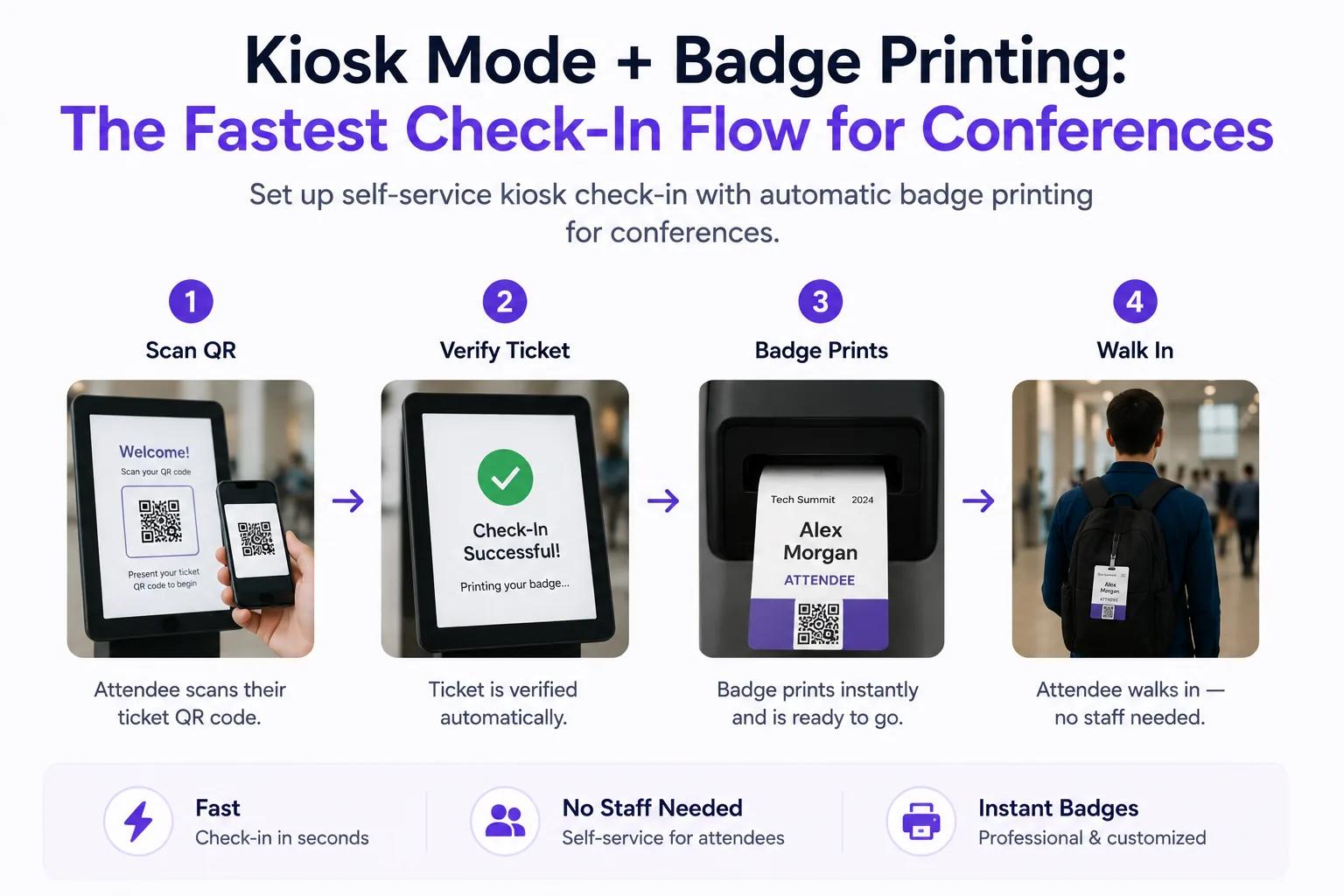
What the Attendee Experiences
- Approach the kiosk — A tablet on a stand, clearly labeled "Check In Here"
- Scan their QR code — From their phone, printed ticket, or Apple Wallet
- See their name confirmed — "Welcome, Sarah Chen — VIP Pass"
- Badge prints automatically — A thermal printer below the kiosk produces their badge in 3-5 seconds
- Pick up badge and enter — Total time: 15-20 seconds
No staff interaction required. No name lookup. No handwriting. The attendee goes from "arrived" to "inside" in under 20 seconds.
What Happens Behind the Scenes
- Ticket Spot validates the QR code against the live attendee list (the tablet needs a working connection)
- The check-in is recorded in the Ticket Spot dashboard in real time
- Badge data (name, company, ticket type) is sent to the thermal printer
- The attendee's status updates to "Checked In" across all connected devices
- If using Klaviyo integration, a "checked in" event triggers for post-event email flows
Hardware Setup
What You Need
| Component | Purpose | Budget Option | Professional Option |
|---|---|---|---|
| Tablet | Kiosk display | iPad (any generation) | iPad Pro + kiosk enclosure |
| Thermal printer | Badge printing | Brother QL-820NWB ($130) | Dymo LabelWriter 550 ($180) |
| Printer stand | Position printer below tablet | DIY bracket | Custom kiosk stand with printer mount |
| Badge stock | Printable badges | Adhesive badge labels | Badge holders + clip/lanyard |
Total cost per kiosk: $200-500, depending on hardware choices.
Recommended: iPad + Brother QL-820NWB
This combination is the most widely used for conference kiosk check-in:
- iPad runs the Ticket Spot check-in page in kiosk mode (full screen, no navigation bar)
- Brother QL-820NWB connects via Wi-Fi or Bluetooth and prints 2.4" x 3.9" badges at 93 labels/minute
- DK-2205 continuous label rolls let you print badges of any length
Network Setup
For reliability, connect the printers to the same local network as the tablets. If the venue has unreliable Wi-Fi:
- Use a dedicated mobile hotspot for the kiosk network, kept off the guest Wi-Fi
- Treat the connection as a hard requirement — there is no offline check-in mode, so a tablet that drops off the network stops admitting people until it is back
- Printers connect to the hotspot directly — they don't need internet, just a local connection to the tablet
Badge Design
What to Include on the Badge
A well-designed conference badge includes:
- Full name — Large, readable from 6+ feet away (minimum 24pt font)
- Company / Organization — Secondary line, 16-18pt font
- Ticket type / Role — Speaker, VIP, Attendee, Staff, Press (often color-coded)
- QR code — For session tracking and lead retrieval (optional)
- Event logo — Small, top corner
Role-Based Color Coding
Use colored badge stock or a colored stripe to indicate role:
| Role | Badge Color | Access Level |
|---|---|---|
| Speaker | Gold stripe | All sessions + green room |
| VIP / Sponsor | Silver stripe | All sessions + VIP lounge |
| General Attendee | White | All sessions |
| Workshop Only | Blue stripe | Specific sessions only |
| Staff / Volunteer | Red stripe | All areas + backstage |
| Press | Green stripe | All sessions + press area |
This allows visual access control — security staff can see at a glance who belongs where.
QR Code for Session Tracking
Add a QR code to each badge that encodes the attendee's ticket ID. This enables:
- Session scanning — Track which sessions each attendee enters
- Lead retrieval — Exhibitors scan badges to collect contact information
- Networking — Attendees scan each other's badges via a companion app
- Prize drawings — Scan badges for raffle entries
Conference Day Setup
Kiosk Layout
Position kiosks in a line, spaced 4-5 feet apart:
┌────────┐  ┌────────┐  ┌────────┐  ┌────────┐
│Kiosk 1 │  │Kiosk 2 │  │Kiosk 3 │  │Kiosk 4 │
│  iPad  │  │  iPad  │  │  iPad  │  │  iPad  │
│+Printer│  │+Printer│  │+Printer│  │+Printer│
└────────┘  └────────┘  └────────┘  └────────┘
   ↓            ↓            ↓            ↓
         ─── ENTRY TO CONFERENCE ───
Add one staffed lane for exceptions: name changes, lost tickets, accessibility needs. This handles the 5-10% of attendees who can't use the self-service kiosk.
Pre-Event Checklist
- All tablets charged to 100%
- Ticket Spot check-in page loaded in kiosk mode on each tablet
- Network tested at the kiosk positions themselves, with a backup hotspot on hand
- Printers loaded with badge stock
- Test print a badge from each kiosk
- Test scan a real QR code on each tablet
- Confirm printer-tablet connectivity (Wi-Fi or Bluetooth)
- Name corrections sheet at the staffed lane
- Extra badge stock and printer rolls available
- Signage: "Check In Here — Scan Your QR Code"
Staffing
- 1 floater for every 4 kiosks (handles paper jams, QR code issues, badge stock refills)
- 1 person at the staffed exception lane
- 1 person monitoring the Ticket Spot dashboard (watching check-in counts, flagging issues)
Total: 3 staff for 4 kiosks processing 500+ attendees/hour. Compare that to 8+ staff for the same throughput with manual check-in.
Handling Edge Cases
Name on Badge Is Wrong
Attendees sometimes register with a formal name but prefer a different name on their badge ("William" → "Bill").
Solution: At the staffed lane, manually look up the attendee and print a corrected badge. For larger conferences, send a pre-event email asking attendees to confirm their badge name.
QR Code Won't Scan
Phone screens can be hard to scan if brightness is low, the screen is cracked, or the attendee has an older phone.
Solution:
- Ask the attendee to increase screen brightness
- If that doesn't work, look up their name manually on the tablet
- For the name lookup, search by last name or email address
- Print the badge and check them in manually
Badge Printer Jam
Thermal printers occasionally jam, especially with adhesive label stock.
Solution:
- Floater opens the printer, clears the jam, and reloads
- Re-print the badge from the tablet (the attendee is still standing there)
- Keep a backup printer ready if the jam can't be cleared quickly
Attendee Not Found
The attendee has a confirmation email but their name doesn't appear in the system.
Solution:
- Search by email address (most reliable lookup)
- Check if they registered for a different date or event
- If truly not found, create a ticket manually via the Ticket Spot dashboard at the staffed lane
- Print their badge from the staffed station
Advanced: Session-Level Tracking
For conferences with multiple tracks, add session-level check-in:
- Position a tablet + scanner at each session room entrance
- Attendees scan their badge QR code to enter
- Ticket Spot records which sessions each attendee attended
- After the conference, send personalized follow-ups based on their session attendance
This enables:
- CEU/CPE credit tracking — Verify attendance for professional certification
- Personalized follow-ups — "You attended 5 marketing sessions — here are related resources"
- Session popularity data — Know which talks drew the most attendance for future planning
- Exhibitor lead retrieval — Scan badges at booth visits
Integration with Your Conference Stack
Klaviyo for Post-Event Emails
After the conference, Klaviyo integration sends:
- Session-specific follow-ups based on attendance
- Slide deck and recording links for sessions they attended
- Early-bird offers for next year's conference
- Feedback surveys segmented by ticket type (Speakers get different questions than Attendees)
Square POS for Walk-Up Registration
Last-minute registrants can buy a ticket at the door via Square POS, then immediately check in at a kiosk and print their badge. The entire flow takes under 2 minutes.
Custom Domain for Registration
Conference registration happens on your custom domain — register.yourconference.com — creating a professional, trusted experience from the first click.
Get Started with Kiosk Check-In
Stop handwriting badges and flipping through printed lists. Set up self-service kiosks that check in attendees and print badges in 15 seconds.
Questions about kiosk setup? Email support@ticketspotapp.com.